Insights Usage Reports allows you to quickly identify every recipe that contains a specific ingredient, allergen, or group of similar foods. To generate a usage report:
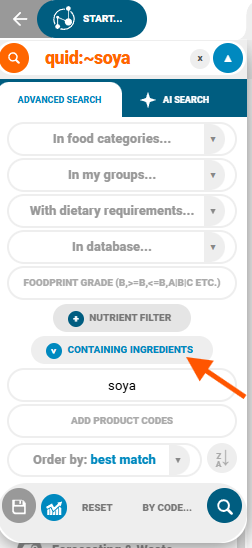
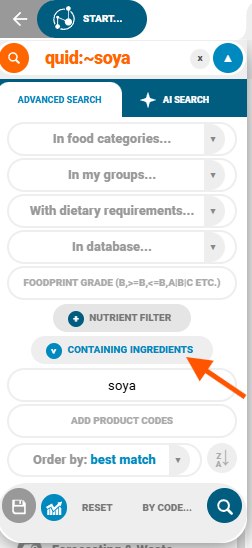
Open Advanced Search and enter your search term:
Click the Usage Report button:
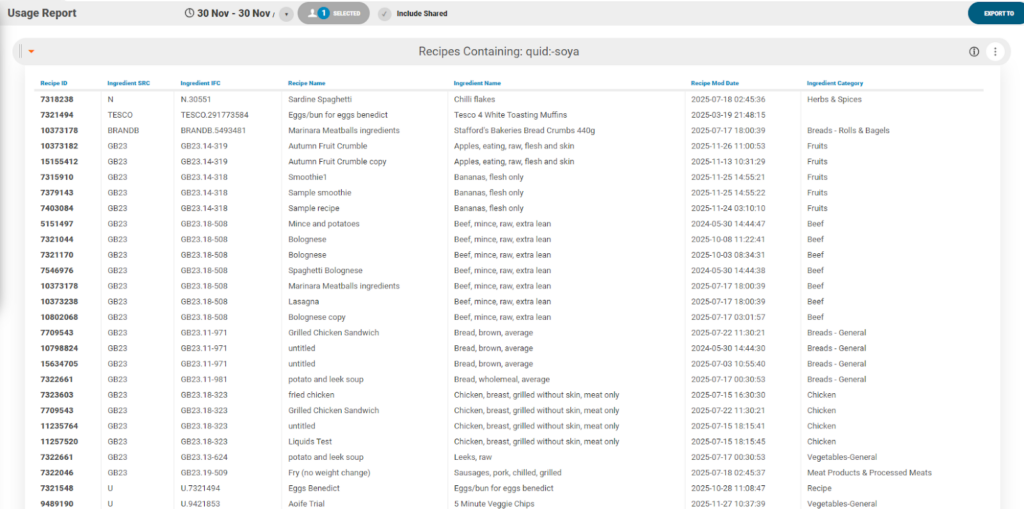
An insights chart showing all recipes that use ingredients matching your search will then open:
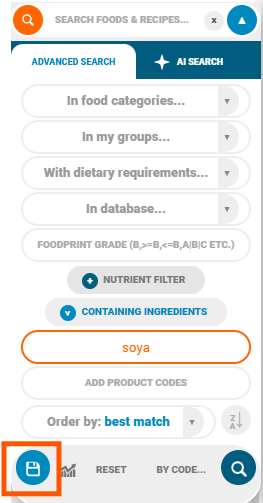
Searches can be saved using the save icon to the left of the chart icon:
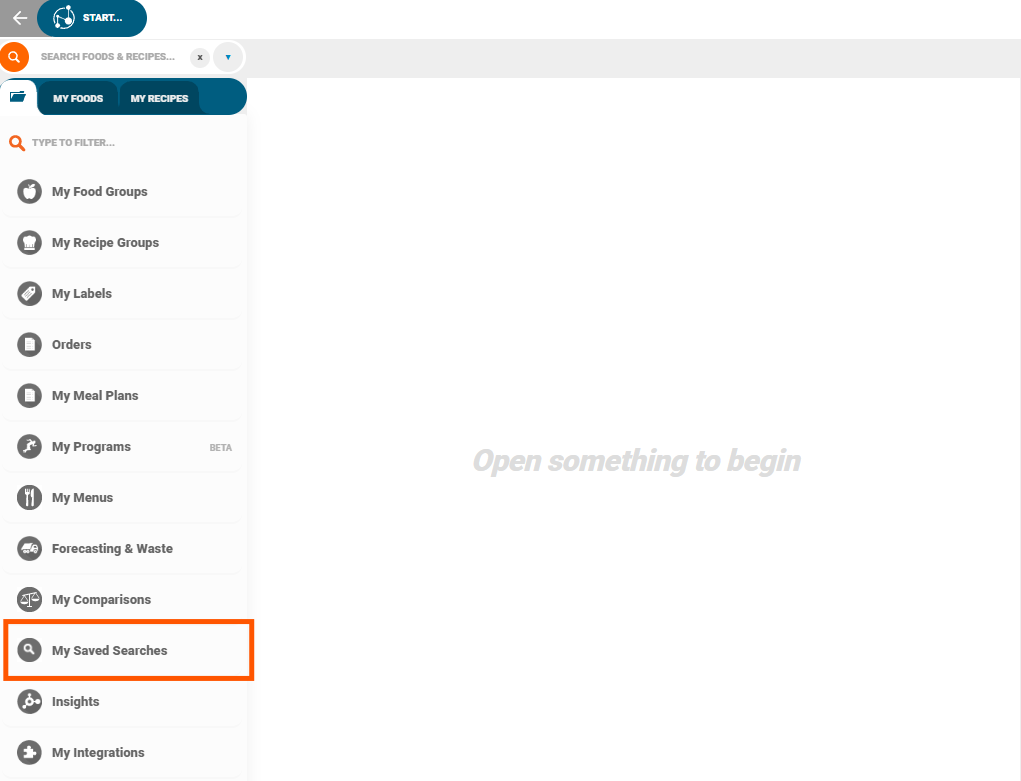
The search will be stored under Saved Searches, accessible from the main homepage.
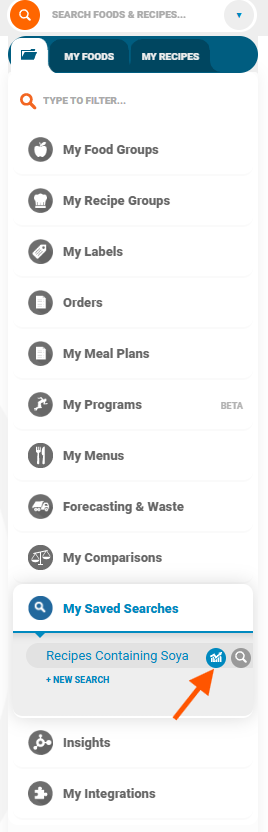
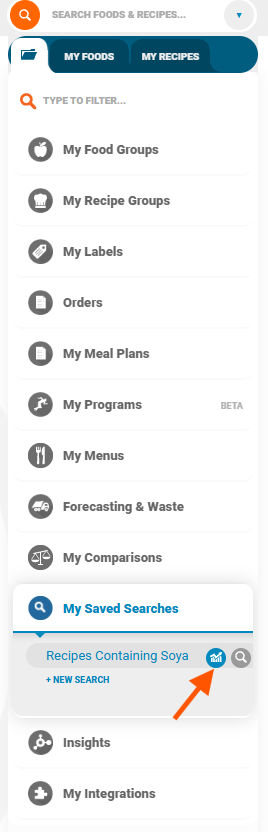
If you previously saved a search, you can generate a report directly from it by clicking on the usage chart icon:
Or by right clicking on the saved search > Usage Report:
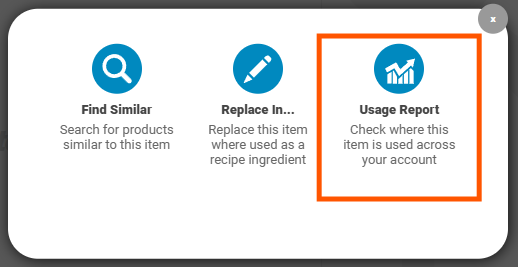
Usage reports can also be used in Like Searches to locate items with similar names or properties. To generate a usage report for this, search for the desired food > right click > Find / Replace:
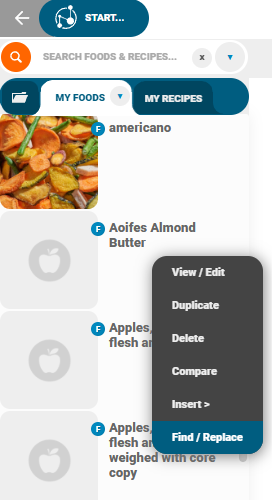
Usage Report:
All Similar:
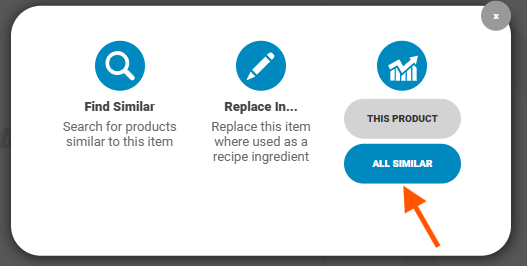
A report will then be generated for foods/recipes containing items similar to the chosen product.
Scheduling Reports
Automated reports can be scheduled for delivery on specific days. This can setup directly from Export options > Schedule:
These can be set to run weekly, monthly, or on a custom schedule and will be delivered to the email addresses entered:
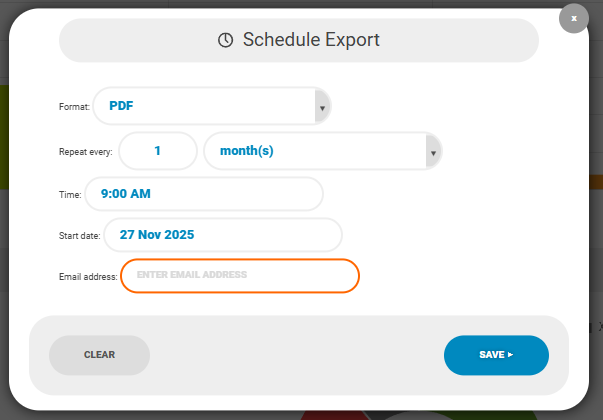
The report can be scheduled to be sent to more than one email address.
API Keys
API keys can be set to help modernise how you connect with the platform.
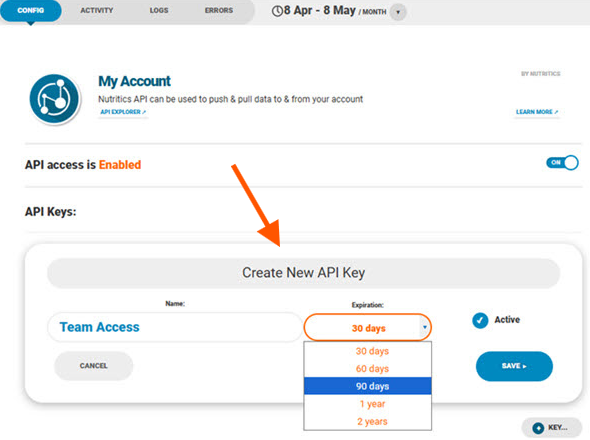
You can manage these directly in the ‘My Integrations’ tab by creating a key and sharing it for API authorisation: