What is SureFood?
SureFood from Nutritics is an intelligent new platform designed to solve the daily challenges of managing supplier data. It transforms the complex, manual process of handling food information by using powerful automations to centralise, validate, and share your product data across the supply chain.
Key Capabilities:
- AI-Powered Validation Automatically import data with our AI engine, layered with Nutritics’ integrity checks. Ensures trusted, high-quality information while eliminating hours of manual work.
- Batch Publishing & Notifications Publish validated data in a single click and automatically notify customers impacted, ensuring everyone is aware of the latest product changes as they happen.
- Enriched Supplier Profiles Manage all your key business information, certificates, and accreditations in one central hub. Showcase a complete, professional, and trusted view of your brand.
- Instant Web Portal Invite partners and customers to your branded web portal for self-serve access to your SureFood published data. Dramatically reducing your time spent on individual data requests.
- A Unique API We provide you with your very own API link, which you can provide to other platforms and IT systems to integrate. Eliminating repetitive data entry, ensuring your information is always consistent.
The result is a single source of truth for your food data that saves you valuable time. By centralising your information in SureFood, you reduce data entry across all other platforms and ensure everyone in your supply chain has access to the same high-quality, up-to-date information.
Logging In
Start by logging in via https://www.nutritics.com/app/
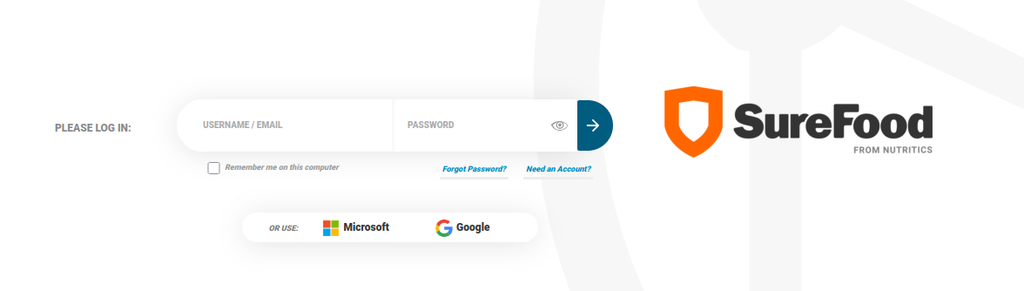
- Enter the username or email address associated with your Nutritics account.
- Enter your Nutritics account password.
- Click the Arrow Button or press Enter on your keyboard.
Main Page Overview
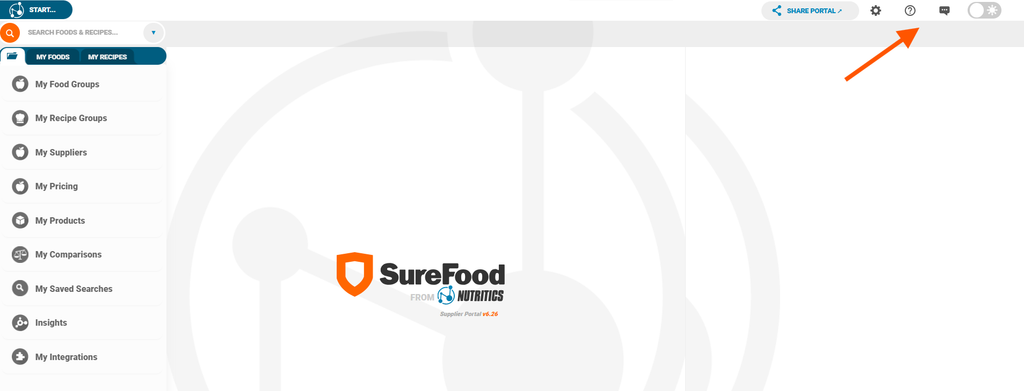
Upon logging in, your screen will look similar to this. Depending on what features you have enabled on your account, you may see some extra menu options, but this is what all SureFood users will see:
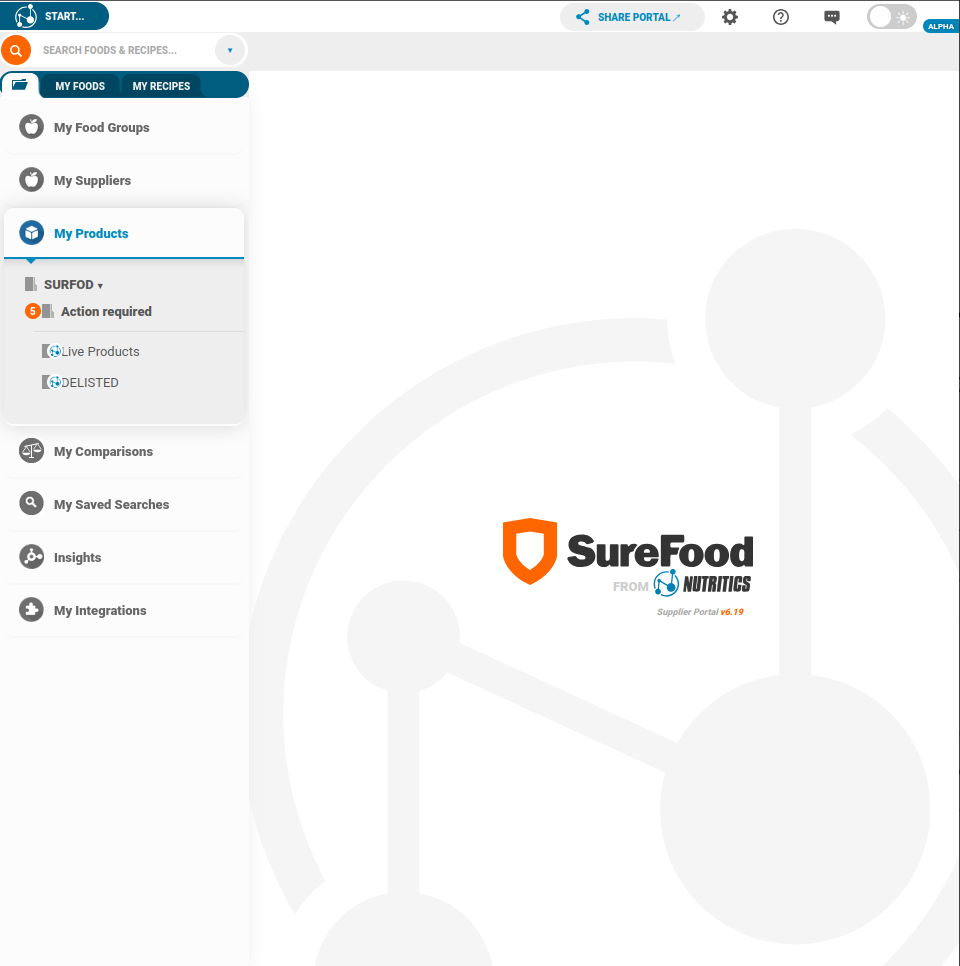
- In the top-left of the screen, you will see the Start Button which will open the Start Menu, this is the central hub for adding data into your account.
- Below the Start Button, you will see the Explorer Menu with the Search Bar, the My Foods and My Recipes tabs and all of the different folders in your account.
- In the top-right of your screen, you will see the Toolbar with the Settings Icon, the Help Icon, the Notifications Icon, and the Dark Mode Switch: