You can complete all fields in Your Profile, and add any key contact points for sales, technical or other that you want included.
Business certifications such as insurance details, allergen management policy, a company blurb and more can also be uploaded here to make them viewable for all customers that use your source.
This can be accessed through Settings > Your Profile.
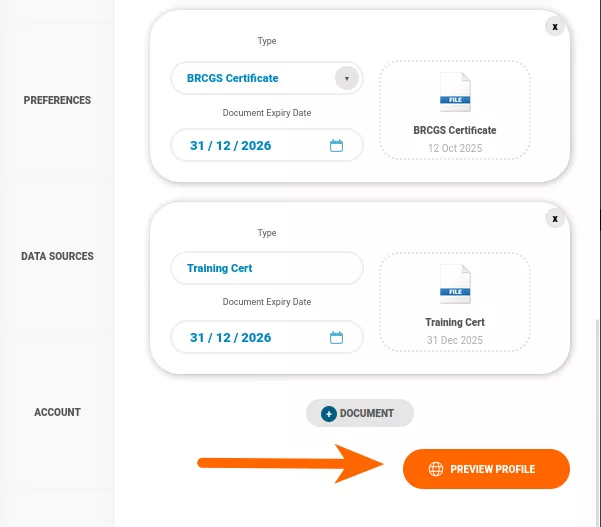
A new document can be added using the + Document tab at the bottom of the profile. To set the document type, you can use the use the dropdown arrow under the Type panel:

When finished, scroll down to the very bottom of the tab and click on the Preview Button to see how your profile will present to customers:
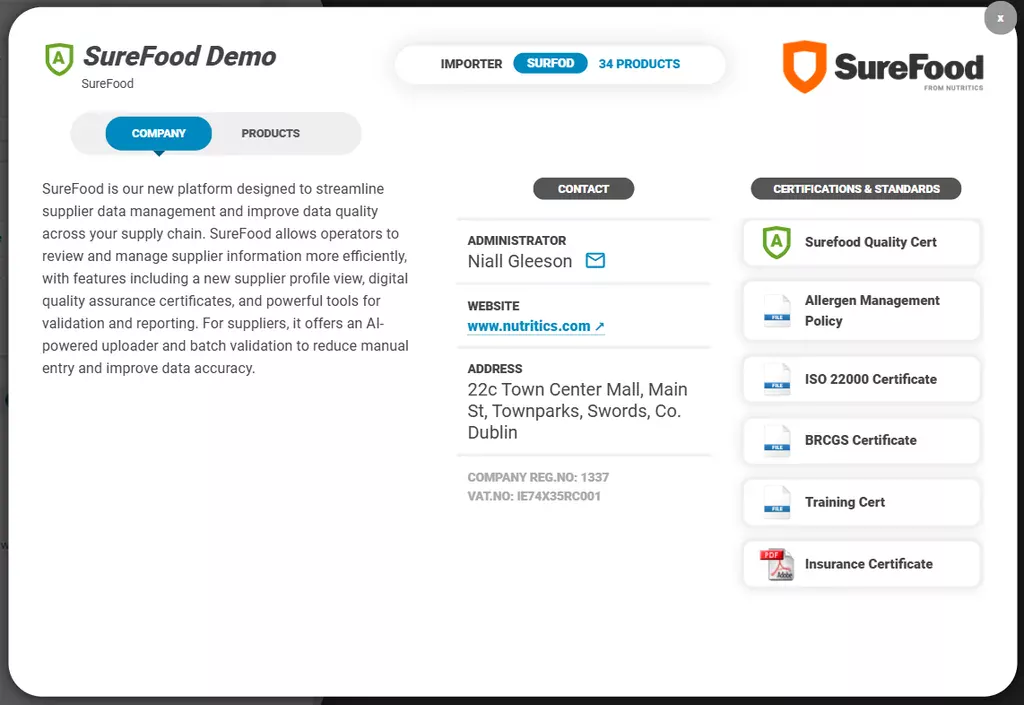
Your Profile Card will appear in the centre of the screen and it will look like this. The Company tab will include all contacts and certifications added:
From the category tab, customers will have visibility over how many foods are published to your data source.
On the Company tab, you can see all the information associated with your organisation in a shareable, digital business card, this is also viewable for your customers.
From the Products tab, you will be shown a breakdown of your “Data Source” that looks like this:
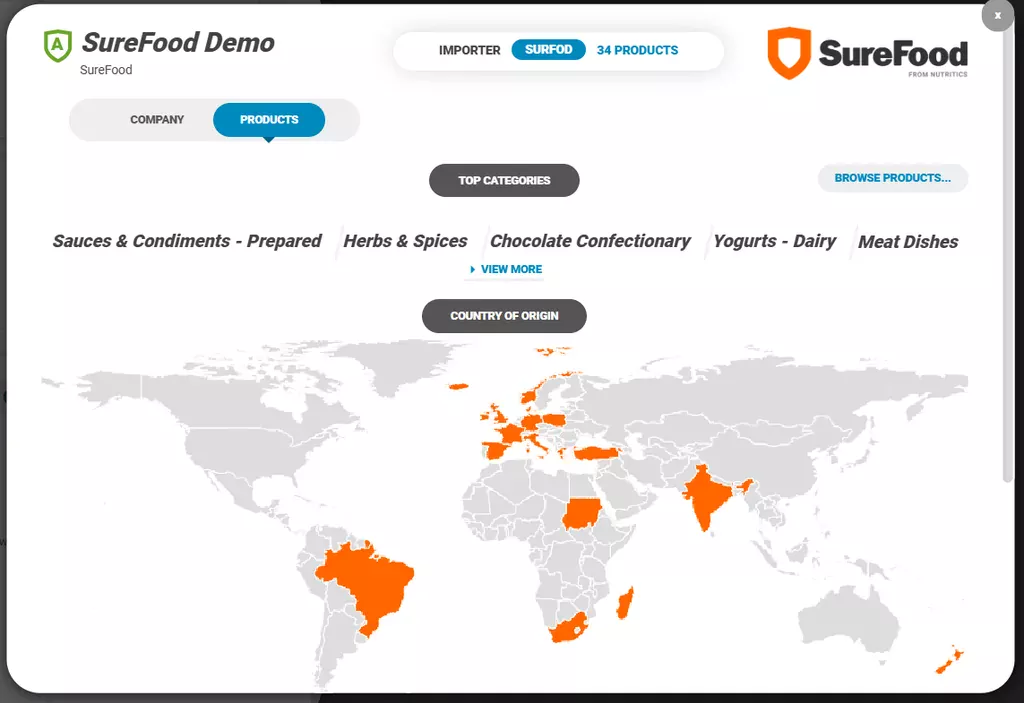
The Products tab includes a breakdown of your product’s Top Categories and a Country of Origin map.
It also includes a Browse Products… button that anyone can click on to view your product catalogue without a Nutritics account.
This will also allow users to search for items within your catalogue.