If you do not have the nutrient data for your food, there may be generic data available that you can use. This is also the case for single ingredients, whole food items like fruit and cuts of meat. However, it is very important to update the allergen information to reflect the particular food you are using.
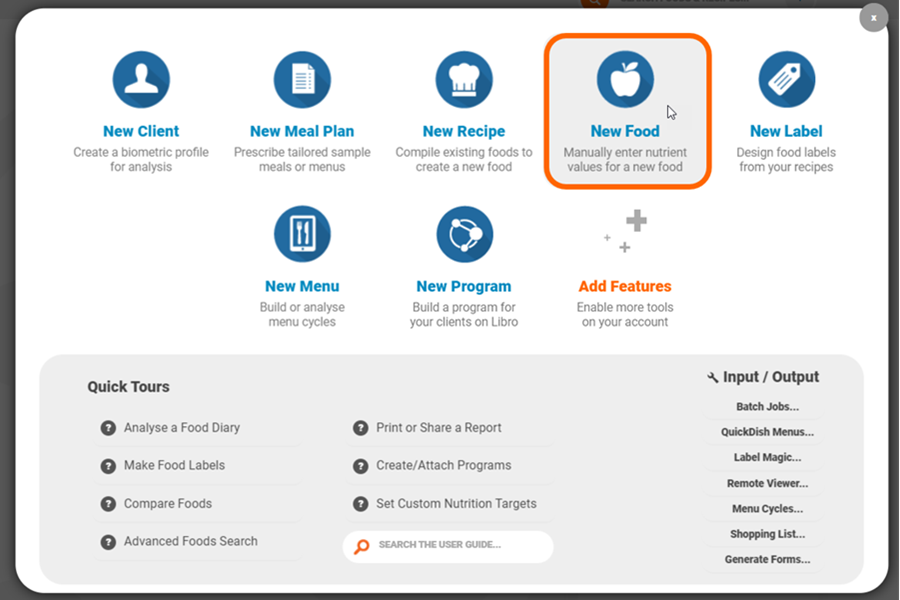
- Click the Start button at the top left of the screen and select the ‘New Food’ option:
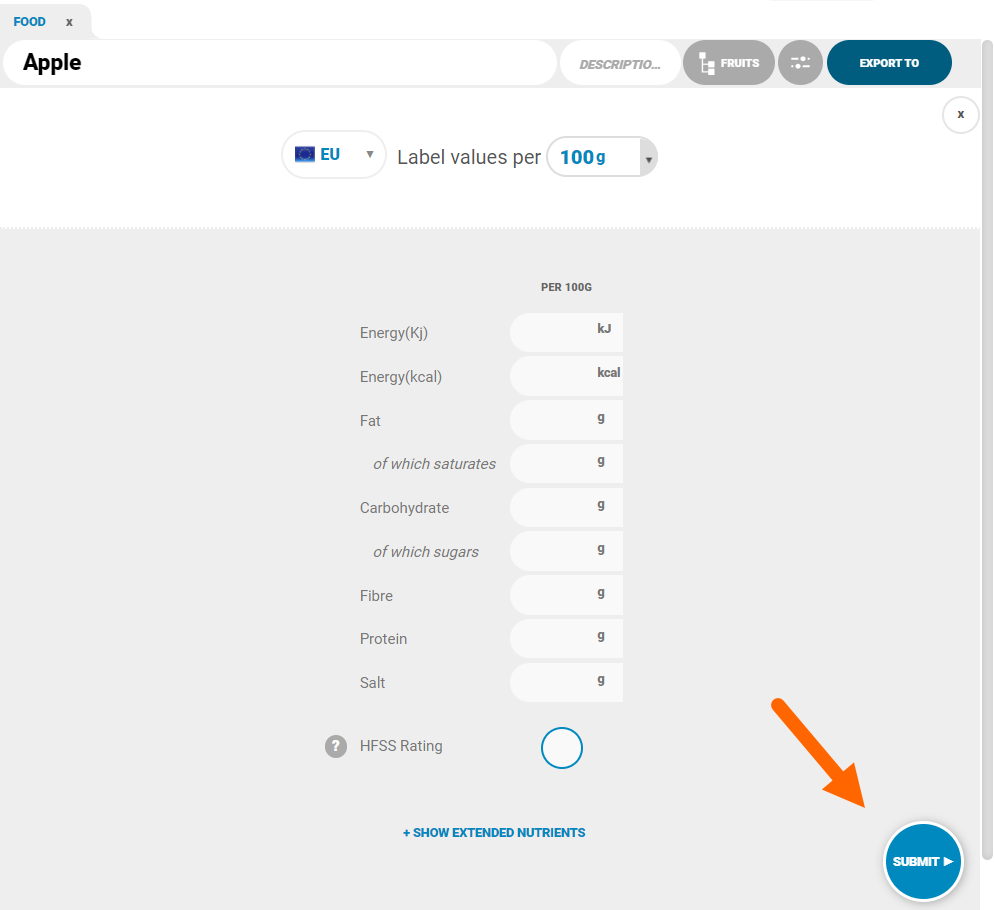
- Name the food as normal and assign a category
- Leave the nutrient fields blank and click ‘Submit’ in the bottom right:
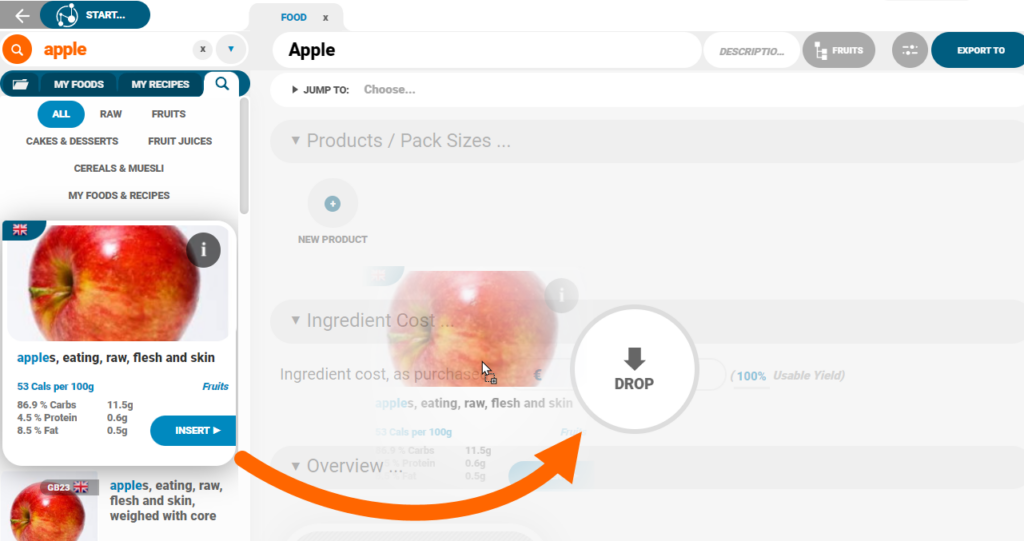
- On the left, search for a food in the search bar and select the best match (be sure to consider preparation when choosing the closest match eg. Peeled, de-stoned etc.)
- Once selected, click ‘Insert’ or drag the food across to the workspace:
- Select what values you would like to import to your food e.g. full nutrient values, dietary properties, allergens:
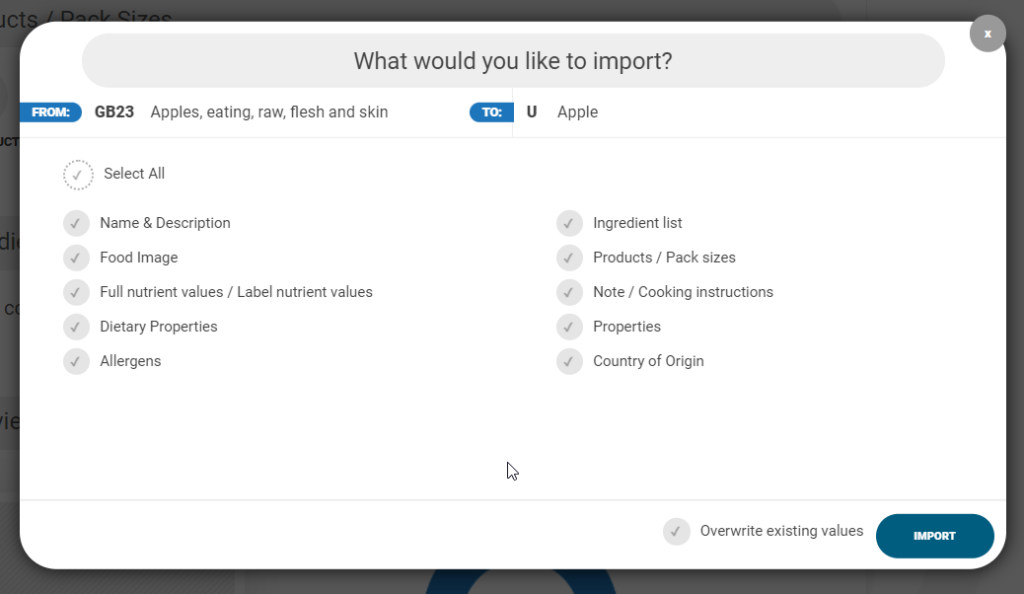
- Select ‘Overwrite existing values’ and ‘Import’
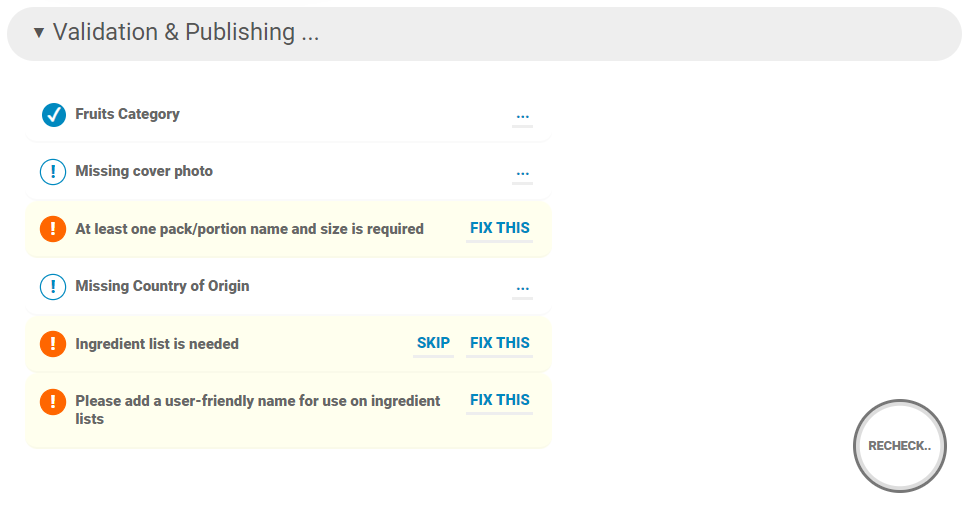
- The ‘Validation and Publishing’ section will advise on the remaining mandatory fields e.g. product code, ingredient list:
- The code and pack size should be updated with your own information if publishing to a data source. The supplier code is usually known to your customer and can be used by them to search for the food
- Once all of the mandatory fields have been added, the Recheck button will update to a Publish button which when clicked, will make the food live in your database for customers to use.